From Timer to Toolkit: A Quick Recap
Transforming my Python desktop app from a cute little timer into daily helpers — like a Garmin activity decoder and an image resizer for web publishing — was both fun and satisfying, as you saw in my previous post. No more manual steps when prepping for my half‑marathon run in December or uploading blog photos. Every minute saved frees me to do something else. Imagine not spending a few minutes each night making overnight oats! Welcome, my robot — where art thou?
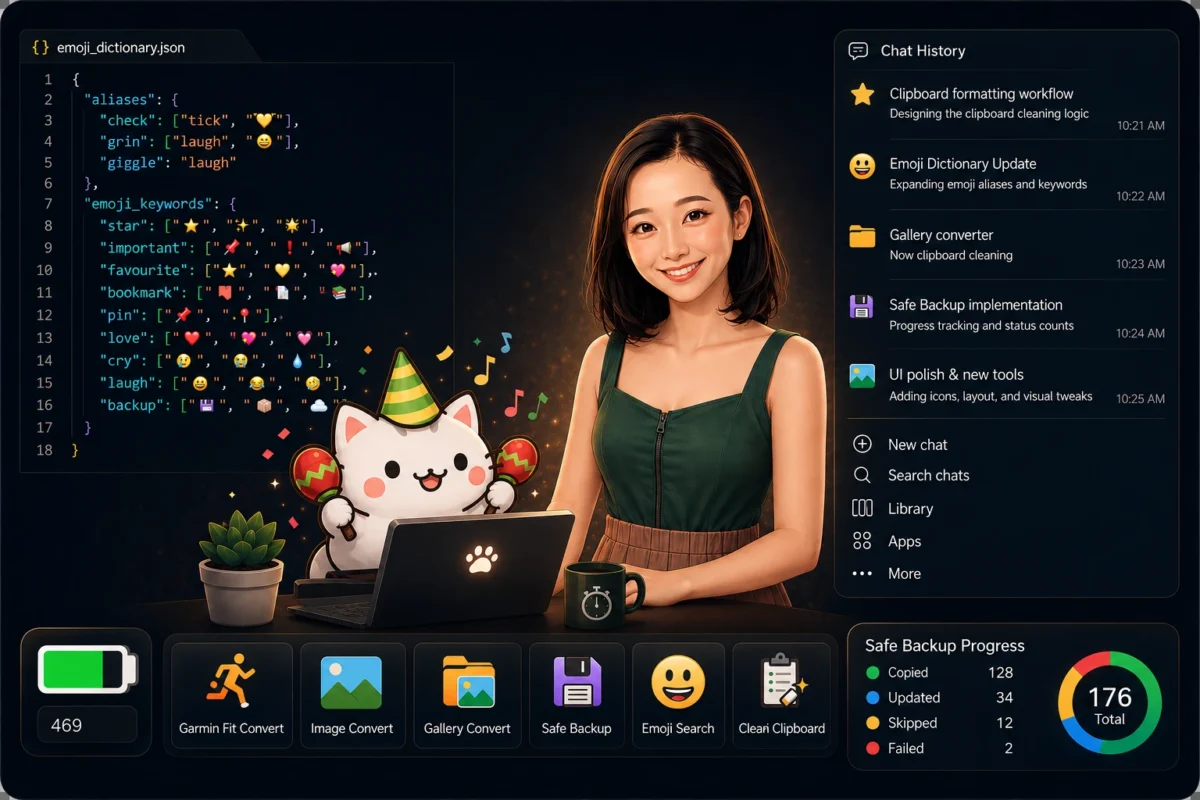
So what else do I want to add to this Bongo‑Cat‑inspired app? A safe backup utility, an emoji search, and, as a bonus, a clipboard cleaner — little things I’ve wanted to build but haven’t. Until now.
Why Backups Matter
My gaming laptop has been with me for nearly five years. We’ve been through a lot together, visiting many places both within and outside my home country. Despite all that time together, I haven’t given much thought to backing up its data. Storage devices work silently in the background — until they don’t. Call it procrastination: this is one of those tasks I know I should do today but just keep thinking about.
Backup strategy is a personal choice. Some people upload important stuff to the cloud. Cloud backup services involve ongoing fees, and recent reports show that cloud breaches and misconfigurations are common, raising privacy and security concerns. Others rely on generic backup utilities. But you have to understand what those tools are doing under the hood, and because they aren’t tailored to your needs, you often end up working around their quirks. Then there’s manual backup — painstakingly selecting files yourself, as I’ve done for years. It’s neither efficient nor disciplined.
Imagine I could mark a folder for backup and choose to copy just its contents or everything nested within. Imagine the app scans folders first and only copies new or modified files. Imagine it’s safe enough to never delete anything on the backup drive, instead logging items that are no longer on my laptop. And imagine that a single click in my cute desktop app recognises when the right backup device is plugged in and runs everything in the background. That became feature #5, joining the timer, Garmin FIT converter, image converter and gallery converter!
Building and testing this feature was nerve‑wracking. It’s my personal data at stake, so I had to be thorough. So far, so good!
After that, I wanted to do something fun. If I told you how this idea came about — and what it has turned into — you might fall out of your chair.
Ready?
Try not to laugh too hard.
An Emoji Dictionary for Everyday Use
I love ChatGPT, but in my opinion, the UI needs work. Humans don’t see data and conversations like AI does. We don’t have an infinite amount of memory to recall where each chat lives. We need a way to organise information — specifically, a way to organise chats in ChatGPT. As of May 2026, ChatGPT offers Projects for grouping chats but doesn’t yet have folders, multi‑level organisation or a built‑in ‘favourite/star’ feature. But that’s hardly enough for a heavy user like me; there isn’t even a way to favourite chats.
So AI and I brainstormed. One idea was to put a star in front of chats I wanted to favourite. I have to rename each chat after every session anyway (how could we not?!), so I could theoretically add a ⭐ to the title. Except my gaming keyboard, unlike my partner’s cute little one, doesn’t produce cute emojis 😢. I needed a quick way to search and type emojis on my PC, like I do on my iPhone.
Welcome to 2026, when emojis rule the world 🎉!
So AI and I brainstormed again. A star is nice, but I wanted more than a single symbol. We decided to build an emoji dictionary — not a massive reference, just the words I frequently use to look up emojis. How do you come up with your own emoji dictionary on day one? You don’t. The concept is low‑cost and elegant.
We started with a small set of words and emojis. Whenever a word isn’t found in my dictionary, the app logs it to another JSON file. Embedded in that “missing words” file is a generated prompt for a future ChatGPT session! When I’ve accumulated a sizeable list of missing words, I drop both JSON files into a new ChatGPT chat. AI does its magic and produces a new emoji dictionary saved to my downloads folder.
Then I refresh my emoji dictionary with a menu click. The new dictionary is validated, the old one backed up and replaced, and the missing‑words file cleaned up. No fuss — just a click and my desktop companion gets smarter. I am loving this loop of evolution 💕.
The Handy Clipboard Cleaner
That was feature #6. And to wrap things up — with very little help from AI, because by now I’m more familiar with Python and my app — I added a new button to strip formatting from my clipboard. No more struggling with destination formatting after copying and pasting, using Notepad as a workaround, or installing yet another Windows app to do the same job.
Pausing for Breath
I still have ideas I’d like to explore, but for now I plan to take a break from coding — just sit back, enjoy what we’ve built, and smell the roses.
🌹🌹🌹